UST Tool v7.0.0 Latest Version Download with Free Activation 2027
UST Tool v7.0.0 (Latest Version) Download
If you are a technician specializing in mobile device software repair, the “UST Tool” (versions v7.0.0 through v7.0.8) could be a valuable addition to your toolkit. It can also be used for personal devices, as it is designed to address software-related issues on Android devices.
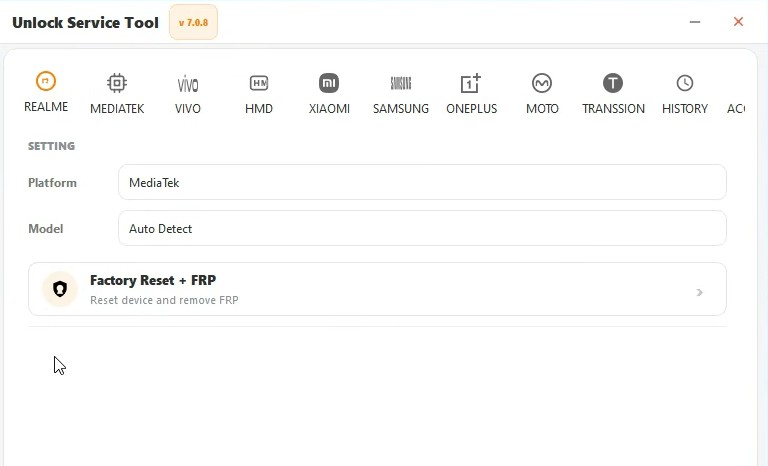
About UST Tool v7.0.0
The abbreviation “UST” stands for “Unlock Service Tools.” It is a lightweight software program that can be installed on Windows-based laptops and desktop computers. The primary function of this tool is to address software-related issues on Android devices. Version 7.0.0 of the UST tool includes key features that distinguish it from other similar tools.
In the following, we will examine this tool in detail; it is compatible with Android devices that utilize various types of processors—meaning it is not limited to a single type of chipset—which makes it, in a sense, a comprehensive and versatile tool. The software enables the resolution of a wide range of software issues, such as device lockouts or forgotten lock patterns and passcodes, all within a matter of minutes.
Common Uses of UST Tool
UST Tool v7.0.0 is a powerful tool used to resolve a wide range of issues. Listed below are some of the primary tasks for which it is commonly used:
- Checking device information
- Detecting the device via USB connection
- Performing software servicing
- Executing maintenance operations on supported devices
- Assisting with firmware-related servicing
- Diagnosing mobile software issues
- Removing passwords from the mobile device
- Bypassing FRP (Factory Reset Protection)
How to use UST Tool v7.0.0?
It is used just like any standard software application:
- Prepare the necessary drivers and UST Tool on your Windows PC.
- Launch the tool with administrator permissions, if required.
- Set the mobile device to the correct USB mode or supported boot mode. Connect the mobile to the PC using a USB cable.
- Check the device detection status in the tool.
- Select the available operation suitable for your device.
- Double-check the model and firmware details before starting any process.
- Do not disconnect the USB cable until the process is complete.
Download Official Link👇