Docker Desktop for MacOs Download Free 2025

Docker Desktop for Mac is one of the most essential tools for developers working with containerized applications. It simplifies building, sharing, and running containers right on macOS, offering a smooth development environment for Docker-based workflows. Whether you’re working with microservices, cloud-native apps, or DevOps pipelines, Docker Desktop provides all the tools you need in one streamlined package.
This blog covers everything about Docker Desktop for Mac, including features, pros and cons, system requirements, and how to install it (without links).
⭐ What Is Docker Desktop for Mac?
Docker Desktop is a user-friendly application that brings the power of Docker Engine, Docker CLI, Docker Compose, and Kubernetes to macOS. It enables developers to create isolated containers for running apps consistently across different systems. With native support for both Intel and Apple Silicon (M1/M2/M3), Docker Desktop works efficiently on modern Macs.
🔑 Key Features of Docker Desktop (Mac)
1. Docker Engine + Docker CLI
Access full container-building and management tools directly from your Mac.
2. Built-in Kubernetes
Run a lightweight, local Kubernetes cluster for testing and deploying microservices.
3. Docker Compose Support
Easily manage multi-container applications using YAML-based configuration.
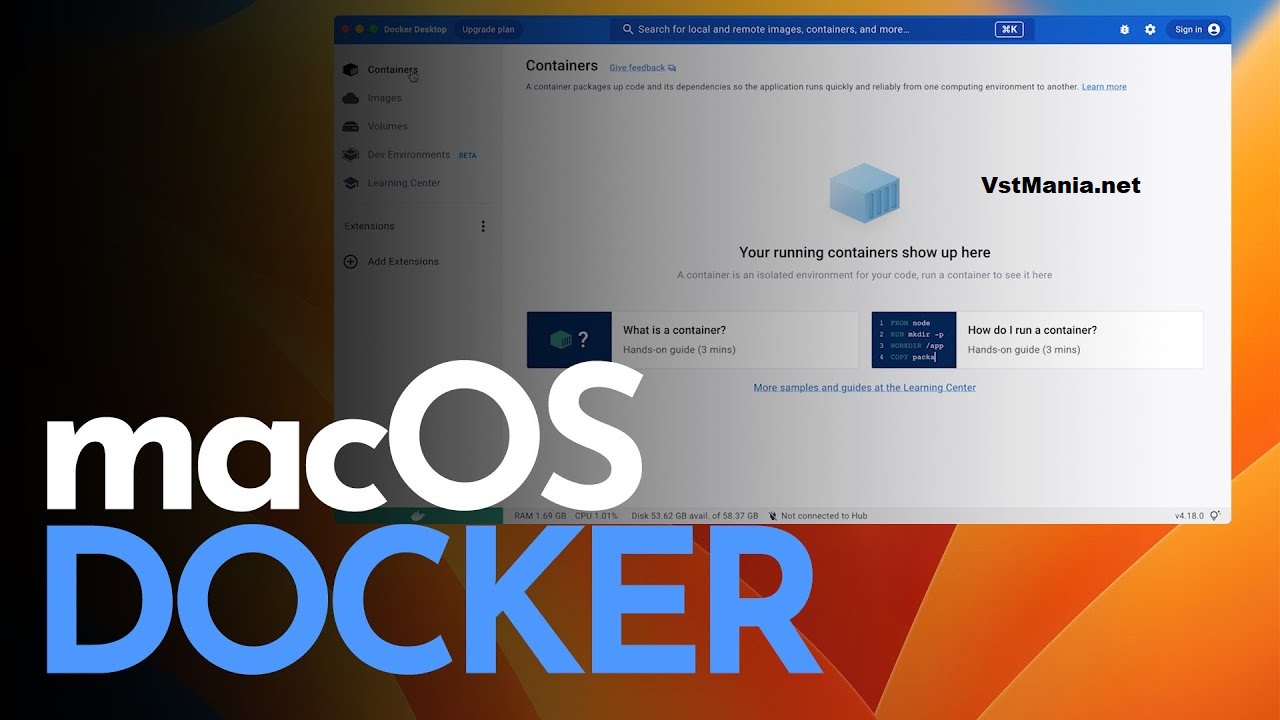
4. Developer-Friendly Dashboard
Monitor containers, images, logs, and resource usage through a clean graphical interface.
5. Automatic Updates
Keeps Docker engine, CLI, and related tools updated with the latest stable releases.
6. File Sharing & Volume Management
Seamlessly share macOS directories with containers for development workflows.
7. Cross-Platform Compatibility
Ensures the same code runs consistently across macOS, Linux, and Windows.
8. Extensions Marketplace
Install official and third-party tools to enhance your DevOps workflow.
✔ Pros & Cons of Docker Desktop for Mac
Pros
-
Easy installation and configuration
-
Native support for Apple Silicon processors
-
Includes Kubernetes for local development
-
Intuitive dashboard for container management
-
Regular updates and strong community support
-
Great for DevOps, microservices, and cloud workflows
Cons
-
High resource usage (CPU/RAM)
-
Requires a paid subscription for some business use cases
-
Can slow down older Macs
-
Kubernetes integration may be overwhelming for beginners
🖥 System Requirements for Docker Desktop (Mac)
Minimum Requirements
-
Operating System: macOS 12 Monterey or later
-
Processor:
-
Apple Silicon (M1/M2/M3), or
-
Intel with virtualization support
-
-
RAM: 4GB minimum
-
Disk Space: At least 2–4 GB free
-
Additional:
-
Rosetta 2 required on Apple Silicon for some legacy features
-
Recommended Requirements
-
macOS 13 Ventura or later
-
8GB RAM or more
-
SSD storage for faster container builds
-
Strong CPU for Kubernetes workloads
⚙ How to Install Docker Desktop on macOS (Without Links)
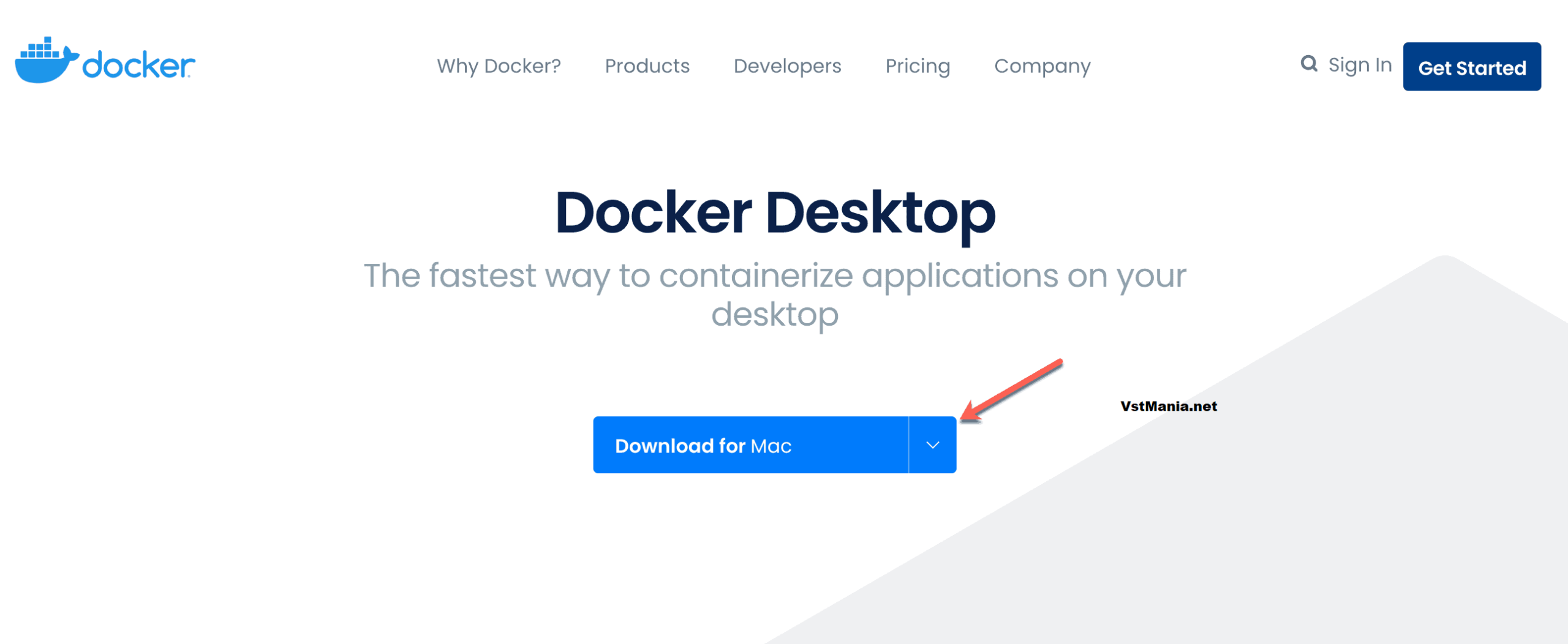
1. Download the Installer
Search “Docker Desktop for Mac download” and choose your macOS chip version (Intel or Apple Silicon).
2. Open the .dmg File
Double-click the downloaded file to open the installer.
3. Drag to Applications
Drag the Docker.app icon into your Applications folder.
4. Launch Docker Desktop
Open Docker from Applications.
5. Grant Permissions
macOS may ask for system permissions—approve them for successful installation.
6. Wait for Initialization
Docker Desktop will set up internal components like the Docker Engine and Kubernetes (optional).
Open the dashboard, run commands in Terminal, and begin building containers.